Smart switch - copy my data
- 4.0
- Rating
- 1.00M
- Installs
- Free
- Price

 Analysis by App-foxy
Moving to a new phone is usually less about buying the device and more about getting your digital life across without leaving important pieces behind. That is the problem Smart switch - copy my data is designed to address. I tested it as a practical transfer tool rather than as a general backup service, and I found that its value depends heavily on how carefully you prepare both devices before starting.
The app sits in the tools category and comes from Simple things for life. It is free to install, carries an Everyone age rating, and has reached more than a million installs. Its average score is 4.0 from roughly 6,500 ratings, with about 1,400 written reviews. Those figures suggest a useful but not universally effortless experience: many people can complete a move successfully, while others are likely running into device, connection, or data-compatibility issues.
From an old phone to a usable new one
I find it helpful to treat a phone move as a small project rather than a single tap: decide what must arrive first, then leave time to check it on the new device. That is especially useful when the old phone is shared or still needed by someone else. Next, I’d think through who is signed in on each device and which personal files belong on the replacement.
You May Also Like

 Blood Strike: 2.5 Anniversary
Blood Strike’s Loadouts Turn Every Drop Into a Tactical Gamble
A close look at Blood Strike’s custom loadouts: how fast access to signature weapons reshapes its battle royale rhythm, rewards preparation, and narrows the gap between fights.

 Pandora - Music & Podcasts
Pandora’s Music Is Easy to Start, but Harder to Recover
Pandora’s strength is its low-effort path from a seed to a station. Its weak spot is how much confidence it asks you to place in connection, setup, and quiet recovery.

 8 Ball Pool
 Is Built on Rivalries, Rematches, and Routine
A close look at the rivalries, rematches, shared routines, and unanswered safety questions that turn a quick pool match into a persistent mobile community.

 Samsung Music
’s Quiet Strength Is Playing What You Already Own
Its reach comes less from spectacle than from dependable access to a personal library. That simplicity is both the app’s strongest retention engine and its ceiling.

 AccuWeather: Weather Radar
AccuWeather Review: A Quick, Clear Forecast for Everyday Decisions
For everyday plans, the best forecast is the one you can understand quickly. AccuWeather makes rain timing, radar, and local conditions easy to act on, with a few trade-offs.

 Hill Climb Racing
Why Hill Climb Racing Still Turns Crashes Into One More Run
A tiny car, a bumpy hill and one more upgrade: Hill Climb Racing keeps resurfacing because its simple chaos makes every near-miss feel personal.
More From Our News Desk



Start with the transfer problem, not the app
The best time to use this app is before you wipe, sell, or hand over your old phone. I would first charge both devices, keep them close together, and remove distractions such as a pending system update or a nearly full destination phone. A transfer is easier to troubleshoot when the old phone still contains the original files and the new one is ready to receive them.
This matters because “copy my data” sounds broader than the practical reality of moving between two different phones. Contacts, photos, videos, and other personal files are the obvious targets, but apps, account sessions, protected content, and settings can behave differently from one device to another. I treat this tool as a migration assistant, not as a guarantee that the new phone will become an exact clone of the old one.
Before opening it, I also recommend making a short inventory. Check the camera folder, downloads, documents, voice recordings, and any folders created by messaging or editing apps. This simple step gives you something to compare after the transfer. It is one of the most useful habits with a tool like this because a completed progress screen does not necessarily mean every item you personally care about has landed where expected.
The first connection sets the tone
On the old and new phones, the basic workflow is straightforward: install the app, open it on the devices, identify which phone is sending and which is receiving, and follow the pairing instructions shown on screen. The important handoff is between the two devices. If the wrong phone is selected as the source, the rest of the process becomes confusing, so I slow down at that point instead of tapping through quickly.
Once the phones recognize each other, the app presents the transfer stage. This is where I decide whether to move everything offered or select only what I need. A full copy is tempting, especially when replacing a phone after several years, but it can also bring across forgotten screenshots, duplicate media, and old downloads. A selective transfer takes more thought and is usually better when the new device has less storage or when I want a clean start.
The smartest workflow is selective first, verification second, cleanup last. I would move essential contacts and personal media, confirm that they arrived, and only then consider another pass for less important folders. That approach reduces the risk of filling the new phone with clutter before you have checked the basics.
What the handoff feels like in everyday use
A realistic example is replacing a phone after the battery has become unreliable. I would keep the old device on a charger, install the app on both phones, pair them, and choose contacts, photographs, and documents. While the transfer runs, I would avoid using either phone heavily. Afterward, I would open the gallery, inspect recent and older images, search contacts by a few names, and open several documents from different folders.
That last check is easy to skip, but it catches the problems that matter. A person may notice immediately that the newest photographs are missing, while an older document hidden in a download folder could remain unnoticed for weeks. The transfer is only successful when the files are useful on the receiving phone, not merely when the app reports that its task is complete.
I also keep the old phone untouched until I have tested the new one for normal tasks. Sign in to the accounts you use every day, open your messaging apps, check calendar entries, and make sure important authentication methods still work. These steps are not necessarily handled by a copying utility because many services deliberately require a fresh sign-in or separate verification on a new device.
Where Smart switch - copy my data is genuinely helpful
The strongest use case is a person who wants a direct, guided way to move personal files without manually browsing folders and sending items one by one. It is especially practical for a family member who is uncomfortable with file managers or for anyone who wants a single transfer session rather than a collection of separate sharing tasks.
It can also be useful when the two phones do not share the same brand tools. Manufacturer migration utilities can be excellent when both devices belong to the same ecosystem, but their menus and supported paths vary. A separate transfer app offers a more neutral starting point for someone changing brands. I would still compare the result with the destination phone’s own migration option before choosing, because a built-in tool may handle device settings or brand-specific content more completely.
Another good scenario is a temporary handoff. If you are moving files to a spare phone while the main device is repaired, you may not want to rebuild every app and setting. Selecting only documents, contacts, and media can make the temporary move less wasteful. When the original phone returns, the same careful inventory approach helps you move back without creating several copies of the same files.
How it compares with the usual alternatives
Cloud backup is more convenient when the old phone is unavailable, lost, or too damaged to keep beside the new one. It is also better for maintaining an ongoing copy of important information. The trade-off is that cloud services can depend on account access, available storage, and a stable connection, while a direct transfer is focused on the two devices in front of you.
Manual sharing gives you the most control over individual files. You can send a particular folder, photograph, or document and inspect it immediately. However, doing that for a complete phone move becomes tedious, and it is easy to overlook less visible folders. Smart switch - copy my data is more efficient for a broad migration, but manual copying remains preferable when you need precise file-by-file control.
A manufacturer’s own switch tool may be the better choice when you want messages, settings, call history, or other platform-specific information to follow you. This app makes more sense when your priority is personal data and a simple cross-device workflow. I would not choose it solely because the name suggests a complete system clone; I would choose it when the files I need can be checked independently after the move.
Small decisions that prevent large problems
First, do not begin with a completely full receiving phone. Leave room for duplicate media and temporary transfer files. If the destination has limited space, start with contacts and documents, then select photographs and videos in smaller groups if the interface allows that workflow. Moving the most valuable content first gives you a safer stopping point.
Second, organize the old phone before transferring. A few minutes spent deleting obvious duplicates and abandoned downloads can save much more time later. This is not glamorous, but it is a hidden advantage of treating the transfer as a move rather than as a button press: you get a chance to decide what deserves a place on the new device.
Third, verify by category instead of trusting one quick glance. Compare a few contact names, inspect different dates in the gallery, browse documents from more than one folder, and check file names that contain spaces or unusual characters. These checks reveal a more realistic picture than opening only the newest photograph.
Finally, keep both phones stable during the process. I would avoid switching networks, closing the app, or letting either device enter an aggressive battery-saving state. Even when the app is designed to guide the connection, transfers are still vulnerable to interruptions caused by the surrounding phone environment.
Where the flow can break
The first weak point is compatibility. Two phones may store similar information in different ways, and an app that moves files cannot automatically recreate every protected app database or account session. If your main goal is a perfect copy of the old interface, settings, and application state, a platform-specific migration service is likely a better fit.
The second issue is ambiguity. A general transfer screen may group data in a way that is less precise than a full file manager. If you need to exclude one sensitive folder while keeping another, read the selection labels carefully and inspect the result afterward. A broad category can be convenient, but convenience sometimes comes at the cost of fine control.
There is also the practical risk of assuming that a successful connection means a successful migration. Phones can disconnect, storage can run short, and a large personal library can take patience. If a transfer stops, I would not erase the old device or repeatedly start random attempts. I would check storage, reconnect both phones, and use smaller selections where possible.
The app is free, although in-app purchases range from $1.99 to $99.99 per item. That makes it important to look closely at any purchase screen and understand which part of the experience is available without payment before committing to a large move. For a one-time transfer, I would compare the free workflow with the built-in tools already present on both phones rather than assuming an upgrade is necessary.
Who should use it and who should skip it
I would recommend this app to people who want a guided way to move personal files between two working phones, especially when they are changing brands or helping someone who finds manual file management frustrating. It is also a reasonable choice for a controlled, selective transfer to a spare device.
I would skip it when the old phone cannot stay powered on, when the destination has very little free space, or when the most important content lives inside apps that require their own backup and restoration process. In those situations, cloud recovery, a manufacturer migration tool, or a dedicated backup method may be safer.
Privacy-conscious users should also think about the kind of material they are moving and whether a direct device-to-device process matches their comfort level. I would avoid transferring everything automatically when the old phone contains private folders that do not belong on the new one. Selection and post-transfer cleanup are not optional extras; they are part of using the tool responsibly.
My outcome after treating it as a workflow
My overall impression is that Smart switch - copy my data is most useful when it is given a clear job: move chosen personal data from a working old phone to a prepared new phone, then let me verify the result. It reduces the friction of gathering files manually, and its broad appeal is reflected in its million-plus installs and solid four-point average.
The current version is 122.0 and supports devices running Android 8.0 or later, which makes it accessible to many Android users. Still, compatibility at the operating-system level should not be confused with identical behavior across every phone model. The receiving device, storage situation, file types, and app-specific protections all influence the final result.
After the transfer, I would wait before resetting the old phone. Open the most important files on the new device, confirm the contacts you actually call, inspect photographs from different periods, and make sure your essential accounts have been restored through their normal sign-in process. Only when those checks are complete would I consider the move finished.
For me, the app earns a recommendation as a practical transfer assistant, not as a magic replacement for backups or a complete phone-cloning system. If you approach it with a checklist, choose data deliberately, and verify the outcome, it can make a stressful device change much calmer. If you expect every setting, protected app, and login to appear exactly as before, you will probably be happier with a built-in migration option designed specifically for your phone ecosystem.
FAQs for Smart switch - copy my data
01What is Smart Switch - Copy My Data used for?
Smart Switch - Copy My Data is designed to help you transfer personal information from one smartphone to another. Depending on the devices and permissions available, it may copy contacts, photos, videos, calendar entries, and other selected files. It can be useful when upgrading phones, but the exact transfer options may vary between Android and iOS versions.
02Does Smart Switch - Copy My Data transfer all information from my old phone?
No, you should not expect the application to copy absolutely everything. Transfer support usually depends on the data type, operating system, storage access, and compatibility between the two devices. Contacts, media, and calendars are commonly supported, while app data, passwords, messages, protected files, and account information may require separate backup or manual transfer methods.
03Is Smart Switch - Copy My Data safe to use?
The app requires access to personal content such as contacts, photos, videos, or files in order to perform a transfer. Before using it, review the permissions requested and install the application only from a trusted store. It is also sensible to keep the original phone untouched until you confirm that the transferred data is complete and opens correctly on the new device.
04Do both phones need to be connected to the same Wi-Fi network?
In many transfer setups, both devices need to communicate through the same local wireless network or through a connection created by the application. Keep the phones close together, enable Wi-Fi when requested, and avoid switching networks during the process. Connection requirements can differ depending on the phone models, operating systems, and version of Smart Switch - Copy My Data installed.
05What should I do if the data transfer fails or takes too long?
First, charge both phones, free up storage on the receiving device, and make sure the application has the necessary permissions. Restarting the app and reconnecting both phones can resolve temporary connection problems. For large photo or video libraries, the process may take considerable time. If it continues to fail, transfer smaller groups of files or use your phone’s built-in backup service.
Pros
- Simple setup makes transferring contacts
- photos
- videos
- and calendars easy.
- Works without mobile data when devices connect over the same Wi‑Fi network.
- Useful for moving data between different phone brands and operating systems.
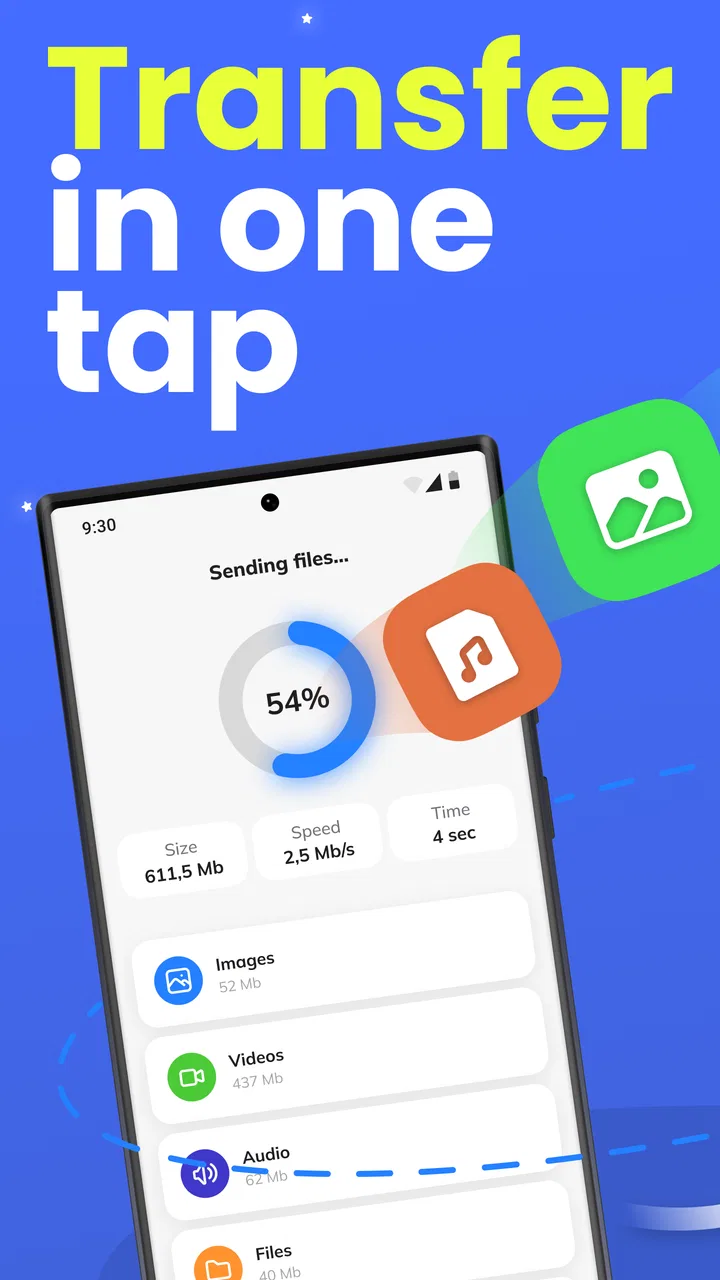
- Transfer progress helps you monitor which files have already been copied.
- Can reduce the need for cables
- adapters
- or computer-based backup tools.
Cons
- Transfer speeds may drop noticeably when copying large photo or video libraries.
- Both devices usually need to remain nearby and connected during the process.
- Some app data
- messages
- or protected files may not transfer completely.
- The interface can feel dated compared with newer phone migration tools.
- Free features may include ads or prompts for additional permissions.

Smart switch - copy my data
Gallery